


QuickDoc: PDF Reader Tools
4.5323.00 Reviews
App Specs
- Version
- 1.2.4
- Updated On
- License
- Free
- Downloads
- 1,000,000+
- Developer
- Dev Globeg
- Categories
- Tools
- Platform
- Android
Screenshots
 Analysis by AppCompare
For me, a PDF reader earns trust through the choices I can actually see, not through a polished first screen or a confident promise. That matters because PDF files can contain personal paperwork, schoolwork, work documents, and details I would not want to handle carelessly. QuickDoc: PDF Reader Tools is a free tools app from Dev Globeg, and its appeal is the straightforward idea of keeping everyday document reading and organization on a phone. I would approach it as a practical reader first, while checking the app’s current permission prompts and privacy information before bringing sensitive files into any mobile tool.
Trust starts with what is visible
The app is rated for Everyone, has an average rating of 4.5 from around 7,100 ratings, and has passed 1 million installs. Those figures suggest that plenty of people have tried it, but they do not tell me how the app handles a particular document or what choices appear on a particular device. I treat popularity as context, not as a substitute for checking the controls that matter to me.
QuickDoc is currently at version 1.1.8 and supports Android 8.0 or later. It was released on August 26, 2025. That gives me a useful compatibility baseline, but I would still check the app’s permission requests when installing and revisit the app’s privacy details if I planned to use it for records containing financial, medical, or identity information.
Permissions and practical checks
My first step with any document reader is to notice what the app asks to access and whether the request makes sense for the action I am taking. For example, a reader needs a way to open a file I choose; I would pause if a permission prompt seems broader than the task requires. I cannot judge a permission from its label alone, so I also look for an explanation in the app and the relevant privacy information before making a decision.
I also prefer to test a new reader with a harmless sample PDF before opening something confidential. That lets me learn how its file picker, library, and organization tools behave without putting important paperwork into a workflow I have not evaluated. If I later decide the app is not a fit, I can remove the sample and stop using it without having made it part of my document routine.
Where I would be careful with documents
PDFs are often treated as ordinary attachments, but they can include signatures, addresses, account details, or notes that reveal more than the filename suggests. I would be especially deliberate before opening a work contract or a scan of personal identification in any reader. A familiar interface can make a file feel less sensitive than it is, so I would keep my own judgment in the loop rather than assuming convenience automatically means privacy.
For low-risk reading, such as a public manual or a class handout, a phone reader can be a handy everyday tool. For sensitive records, I would first consider whether I need to keep a local copy at all, and whether the file belongs in a managed workplace or school system instead. That is not a criticism unique to QuickDoc; it is a sensible boundary for any app that handles documents.
Worth Reading Before You Choose

EA SPORTS FC Mobile 26 Is a Bigger Football Game, but It Takes Time

Flipboard Shows What News Apps Must Do Beyond the Feed

Switching to Android Auto Means Rethinking Your Driving Routine

Google Calendar Makes a Crowded Week Easier to Manage

Ludo King Makes the Most of the Minutes Between Plans

Baby Panda World Brings Quick Play to Modern Phones, but Its Game Library Feels Busy
Useful does not mean hands-off
QuickDoc’s appeal is its focus on familiar PDF tasks rather than asking me to learn a complicated document system. The app is free, which makes it easy to try for casual reading, and the large user base gives a new user a little social context. Still, I would not treat a free download or a strong average rating as proof that every control will match my preferences. I want to understand what I am granting and where I am choosing to keep each file.
That is why I would start with a small, ordinary document, explore the available settings, and make an intentional choice about which PDFs I open in it. If those visible choices work for my needs, QuickDoc could earn a place in my routine. If the permissions or privacy explanations do not give me enough confidence for a particular document, I would use a reader already approved for that context instead.
Getting Started with QuickDoc
First things first, downloading QuickDoc: PDF Reader Tools from the app store was a breeze. It’s available for both Android and iOS, so no worries if you switch between platforms like me. Once installed, I was greeted with a clean and intuitive interface that didn’t make me feel like I needed a degree in rocket science to navigate.
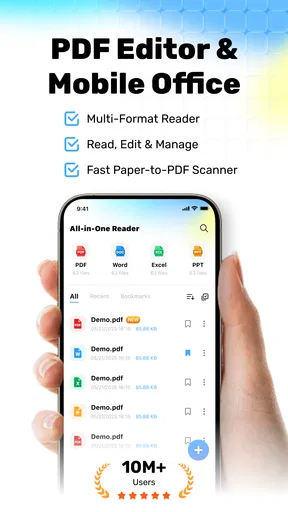
The initial setup is super straightforward. The app quickly scans your device for any PDFs, and boom, there they are, nicely organized and ready for action. I found this feature pretty nifty, especially if you’re like me and have files scattered all over the place.
Diving Deeper: Features that Stand Out
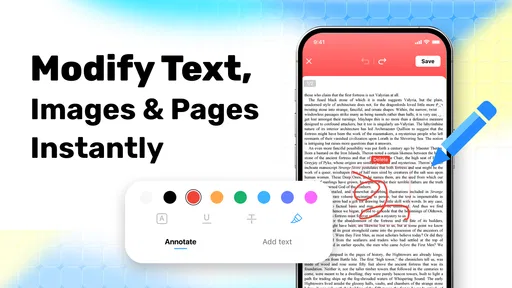
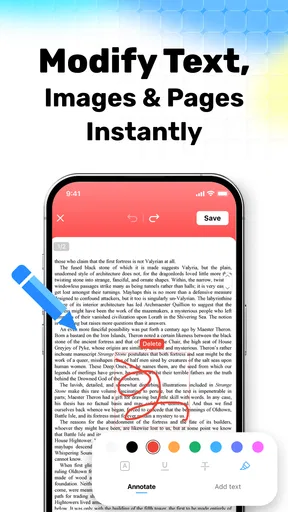
Now, let’s talk features. One of the standout capabilities of QuickDoc is its annotation tools. Whether you’re a student scribbling notes or a professional highlighting important sections, QuickDoc has got you covered. The tools are easy to access and use, making the whole process feel seamless.
Another highlight is the search functionality. You can search for specific text within your PDFs, which is a huge time-saver. No more endless scrolling hoping to find that one paragraph you need for your presentation or study session. Trust me, this feature is a game-changer.
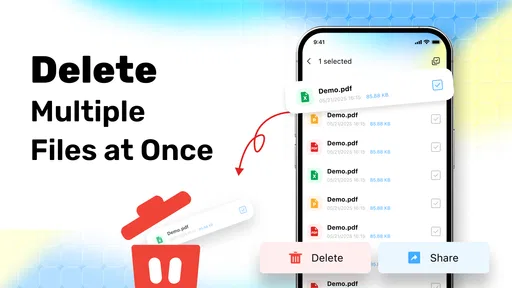
And if you’re someone who loves to keep things organized, you’ll appreciate the app’s ability to create folders and categorize your documents. I found this particularly useful for separating my work documents from personal ones. It’s a small feature, but it makes a big difference in keeping everything tidy.
Reading Experience: Smooth and Customizable
When it comes to reading PDFs, QuickDoc doesn’t disappoint. The app offers a clean reading interface with customizable settings. You can adjust the brightness, switch between day and night modes, and even change the page transition style. I enjoyed playing around with these settings until I found the perfect combination for my eyes.
If you’re a multitasker, you’ll love the split-screen feature. It allows you to view two documents side by side, which is perfect for comparing notes or referencing different materials simultaneously. This feature made reviewing documents so much more efficient for me.
The Little Things That Matter
One thing that impressed me was how lightweight the app is. It doesn’t hog your phone’s resources, so you won’t have to deal with sluggish performance or battery drain, even if you’re juggling multiple tasks.
Plus, the app supports a plethora of languages. This is a huge plus if you’re dealing with documents in various languages, as it makes the app versatile and accessible to a broader audience.
Choosing the right role for a phone reader
I see QuickDoc fitting best into a light, personal workflow: opening a handout on the bus, marking a passage to revisit, or keeping a few recurring reference documents in folders. Its search and annotation tools are especially useful together. I can search for a term first, then mark the passage I found, rather than trying to remember a page number or scrolling through the file again later.
A realistic example is getting a long class reading shortly before a discussion. I would open the PDF, search for the topic the group is covering, highlight the relevant paragraph, and add a short note in the margin if the annotation options support the reminder I need. Later, folders give me a place to keep that reading apart from unrelated personal files. This workflow is more practical than relying on a crowded downloads folder, though I would still keep a copy in whatever school or work system is officially used.
For documents that change frequently, I would use a different habit: keep the authoritative copy in its original source and treat the phone reader as a convenient place to review it. A locally organized copy can become outdated if another version arrives by email or through a shared drive. The folder system helps me find files, but it cannot by itself tell me which one is the latest. I would check the filename or document details before acting on a revision-sensitive form.
Small workflow choices that save time
One useful habit is to create folders around the way I retrieve documents, not just around broad labels like “work” and “personal.” A folder for current reading or forms I need this week can be easier to use than a deep hierarchy, especially on a phone screen. I would avoid making so many categories that sorting becomes another chore; the goal is to shorten the path from opening the app to finding the right file.
Search also works best when I know what kind of PDF I am dealing with. If a document contains selectable text, searching for a phrase can take me straight to a useful passage. If it is a scan or image-based file, text search may not behave as expected unless the text has been recognized. I would not assume every PDF is equally searchable; when a search gives no result, checking the document visually is a sensible next step.
Annotations are most valuable when I use them as navigation aids rather than trying to turn a phone into a full editing workstation. A highlight can mark the clause I need to discuss, while a brief note can remind me why it mattered. On a small screen, extensive rewriting is slower and easier to get wrong. For substantial edits or formal review, I would move to a larger screen and a tool designed for that task.
How it compares with common alternatives
Compared with opening a PDF in a browser or a basic built-in viewer, a dedicated reader can make repeated tasks feel more organized: keeping documents in folders, annotating passages, and searching within a file are more central to the experience. That makes QuickDoc appealing if I regularly revisit PDFs rather than simply viewing one attachment and closing it.
On the other hand, a built-in viewer may be the better choice when I only need to glance at an occasional file and want to avoid adding another app to my routine. A desktop PDF editor is usually preferable for precise page changes, complex form work, or careful comparison over a long session. QuickDoc’s phone-friendly reading tools make more sense for quick access and review than for replacing every document tool I already use.
I would also separate “reader” from “document storage strategy.” Folders inside an app can make a library easier to browse, but they are not a substitute for a backup or an approved shared workspace. If a file needs to be available across devices or maintained by a team, I would keep the canonical version where that group manages it and use a mobile reader for convenience. That distinction prevents a tidy library from being mistaken for a complete records system.
Who will appreciate it—and who may not
Students, commuters, and people who receive PDFs regularly are the clearest audience for QuickDoc. Search helps with long readings, annotations support review, and side-by-side viewing can help when two documents need to be checked together. Someone who mostly reads public or low-risk material may find that combination useful without needing a heavyweight desktop workflow.
I would be more cautious about recommending it as the main tool for a person who handles confidential client files, regulated records, or documents that must stay within an organization’s controlled system. In those cases, the organization’s approved reader and storage process matter more than convenience. It may also be unnecessary for someone who opens a PDF only once in a while; the phone’s existing viewer may already cover that simple need.
Before settling in, I would answer a few practical questions for myself: Can I find a chosen file without giving access I am uncomfortable with? Do the annotation and search tools behave as I expect on the documents I actually use? Can I keep the version I need distinct from older copies? And do I have a clear way to stop using the app if its visible controls do not suit me? Trying a non-sensitive sample first is a low-risk way to answer those questions.
Final Thoughts
Overall, my experience with QuickDoc: PDF Reader Tools was pretty stellar. It’s user-friendly, packed with useful features, and performs smoothly without any hiccups. Whether you’re a student, a professional, or just someone who loves reading, this app is worth checking out.
So, if you’re on the hunt for a reliable PDF reader that won’t let you down, give QuickDoc a whirl. You might just find it’s the tool you never knew you needed.
My cautious verdict is that QuickDoc looks most appealing as an everyday PDF reader, not as a promise that every document workflow belongs on a phone. I would try it with ordinary files, pay attention to the choices presented during setup and use, and reserve sensitive material for a system I already trust. If its reading, search, and organization tools suit the way I work, it can be a handy addition; if I need stronger organizational oversight or detailed editing, I would choose a more appropriate tool for that job.
Pros
- Smooth and fast PDF rendering.
- User-friendly interface design.
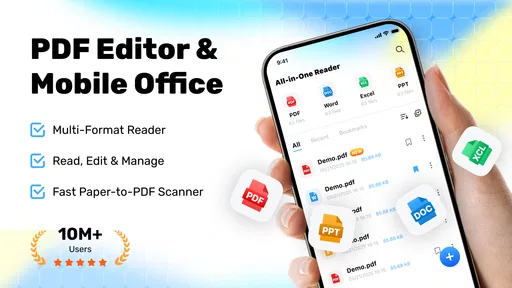
- Supports multiple file formats.
- Offline functionality available.
- Annotate PDFs with ease.
Cons
- Limited cloud storage options.
- Ads in the free version.
- Occasional lag on large files.
- No dark mode available.
- In-app purchases for advanced tools.
FAQs for QuickDoc: PDF Reader Tools
What features does QuickDoc: PDF Reader Tools offer?
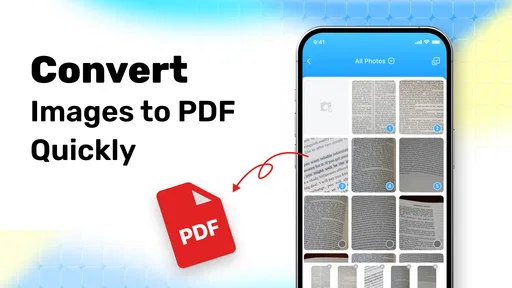
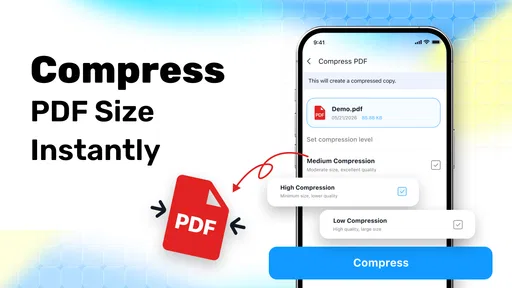
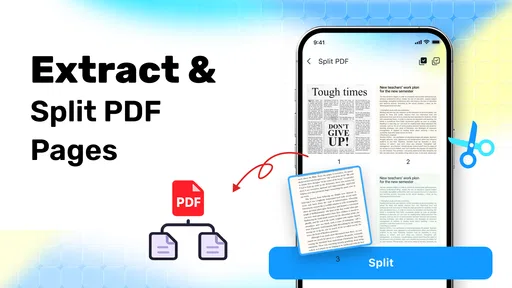
QuickDoc: PDF Reader Tools provides a variety of features designed to enhance your PDF reading experience. Users can annotate documents, highlight text, add comments, and fill out forms. The app also includes tools for merging, splitting, and converting PDFs, making it a comprehensive solution for all your document management needs.
Is QuickDoc: PDF Reader Tools available for both Android and iOS?
Yes, QuickDoc: PDF Reader Tools is available on both Android and iOS platforms. You can download it from the Google Play Store for Android devices and the Apple App Store for iOS devices. The app is optimized for a seamless experience on both operating systems, ensuring functionality and ease of use.
Does QuickDoc: PDF Reader Tools support offline use?
Absolutely, QuickDoc: PDF Reader Tools supports offline use. Once you've downloaded your PDFs or documents, you can access and edit them without an internet connection. This feature is particularly useful for users who need to work on-the-go or in areas with limited connectivity.
Are there any in-app purchases or subscriptions required?
QuickDoc: PDF Reader Tools offers both a free version and a premium subscription option. The free version includes basic features for reading and annotating PDFs. However, for advanced features like converting formats, or extensive editing tools, a subscription might be necessary. The app provides a clear breakdown of what is included in both versions.
How secure is QuickDoc: PDF Reader Tools for handling sensitive documents?
Security is a priority for QuickDoc: PDF Reader Tools. The app uses encryption to protect your documents and offers password protection for sensitive files. Additionally, it does not store your documents on external servers, ensuring your data remains private and secure on your device.


